
Share Your Form via QR Code
Every Formware form automatically comes with a QR code. When someone scans it with their phone camera, your form opens instantly — no typing in a URL. You can download it as a PNG for screens or an SVG for print, and add it to flyers, posters, table tents, business cards, packaging, and slides.
Publish your form before sharing
Section titled “Publish your form before sharing”Your QR code opens the same URL as your form link, so make sure your form is published first. Unpublished forms are not accessible to respondents — see Share Your Form via URL for details.
View your form’s QR code
Section titled “View your form’s QR code”Open your form in the editor.
- Go to the Share tab.
- Navigate to the QR Code section.
- Your QR code appears on your screen. Download it and share with your audience.
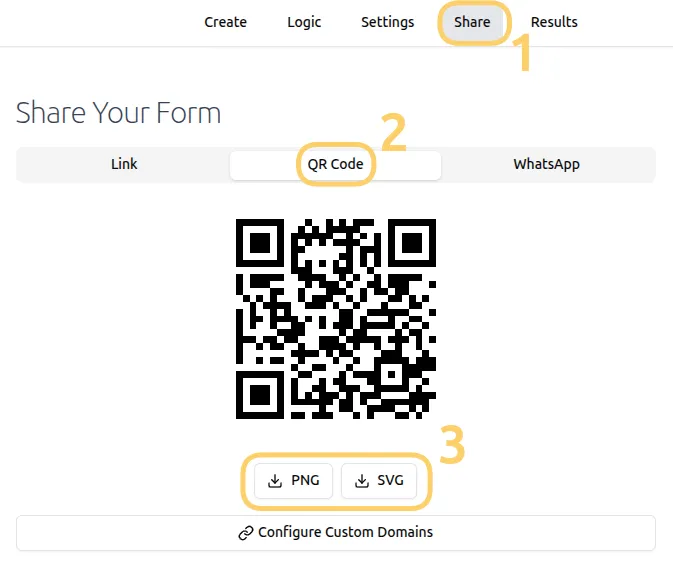
Download the QR code as PNG or SVG
Section titled “Download the QR code as PNG or SVG”In the Share tab, download the QR code in the format you need:
| Format | Best for | Why |
|---|---|---|
| PNG | Screens — slides, social posts, emails, web pages | Fixed-resolution image; use it at or below its original size |
| SVG | Print — flyers, posters, business cards, packaging, banners | Vector format; stays sharp at any size |
Tip: If you need the code larger than the exported PNG, download the SVG instead — scaling up a PNG will blur it.
Which URL does your QR code use?
Section titled “Which URL does your QR code use?”The QR code encodes your form’s URL:
- Formware URL — by default, the QR code points to your Formware-hosted share URL.
- Custom domain (Pro) — if you’ve connected a custom domain, the QR code points to your branded URL instead, e.g.
https://forms.example.com/contact. That way, the URL printed on your materials reinforces your brand, not ours. Read more in Custom Domains.
A downloaded QR code is fixed to the URL at the time you downloaded it. If you connect or change your custom domain later, download a fresh QR code so it points to the new URL.
Where to use your Formware QR code
Section titled “Where to use your Formware QR code”QR codes shine anywhere your audience is offline but your form is online:
- Restaurants & retail — feedback or review forms on table tents, receipts, and storefront windows
- Events — registration forms on posters and badges, feedback surveys on presentation slides
- Print campaigns — flyers and direct mail linking to a lead-generation form
- Packaging & inserts — warranty registration, review collection, reorder forms
- Business cards — let contacts reach your intake or booking form in one scan
Because QR scans almost always happen on mobile, they pair perfectly with Formware’s one-question-at-a-time forms — respondents can start answering the moment they scan.
Tips for a QR code that scans well
Section titled “Tips for a QR code that scans well”- Test before printing. Scan the code with at least one iPhone and one Android phone before sending it to print.
- Size it for the scan distance. Keep the code at least ~2×2 cm for handheld scanning; for posters, roughly a tenth of the viewing distance (scanned from 2 m away → at least 20 cm wide).
- Keep the contrast high. Dark code on a light background scans most reliably. Avoid inverted colors.
- Keep your form open. The QR code opens your form’s URL — if the form is closed, it leads to an unavailable page.
Frequently asked questions
Section titled “Frequently asked questions”Is the QR code available on the Free plan? Yes. Every form gets a QR code automatically, on every plan.
Does the QR code expire? No. The QR code encodes your form’s URL and keeps working as long as your form is published.
Should I use PNG or SVG? PNG for anything displayed on a screen; SVG for anything printed.
I connected a custom domain — do I need a new QR code? Yes. Download a fresh QR code from the Share tab so it points to your custom-domain URL.