
Checkbox question type
The Checkbox question type is a closed-ended question that presents answer options as checkboxes. It is the go-to question type for consent — asking respondents to agree to your terms and conditions, accept your privacy policy, or opt in to outreach.
Like Multiple Choice, Checkbox can display a list of options, but instead of buttons, each option has a checkbox beside it. Respondents select a single option.
How to add a Checkbox question
Section titled “How to add a Checkbox question”- Open an existing form or create a new form and click the
+ Add Contentbutton. - Select Checkbox from the Choice question types.
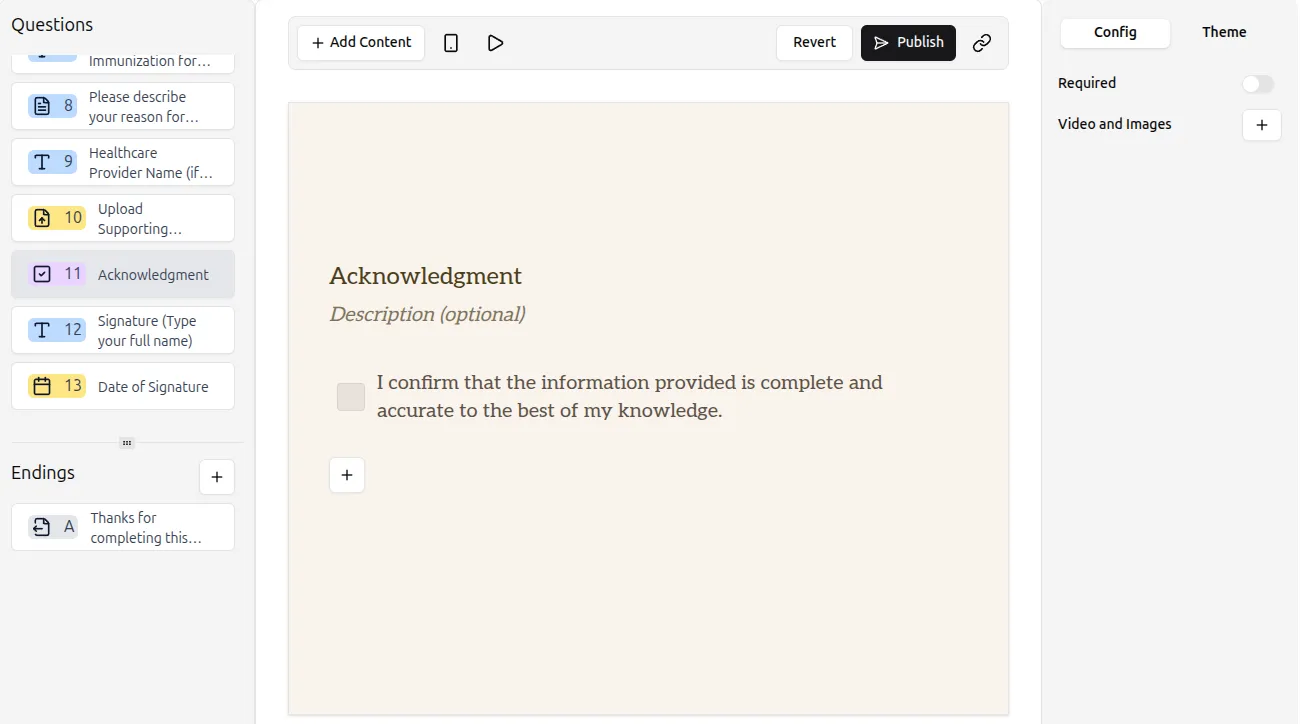
- A Checkbox question with a single checkbox option is added to your form.
- Type your question in the placeholder field and, optionally, add a description.
- Describe what the checkbox is about in the checkbox description field — this text appears next to the checkbox, so spell out exactly what respondents are agreeing to.
For a general walkthrough, see Add questions to your form. To see the full range of inputs you can use, browse the question types overview.
Add more checkboxes
Section titled “Add more checkboxes”By default, a Checkbox question starts with a single checkbox — ideal for consent moments. To present more options, click the + button, the same way you add choices to a Multiple Choice question.
To remove an option, hover over it and click the x icon.
Respondents can tick only one option, even when several checkboxes are listed.
Need respondents to pick several options? Use a Multiple Choice question with multiple selection enabled.
Configure Checkbox settings
Section titled “Configure Checkbox settings”All settings are available in Question settings on the right-hand panel.
Make the question required
Section titled “Make the question required”Toggle the Required switch so respondents cannot continue without ticking the checkbox — essential for terms acceptance. For optional opt-ins, such as a newsletter signup, leave Required off so respondents can skip the question. See Make questions required.
Add an image or video
Section titled “Add an image or video”You can add an image or video to your Checkbox question — for example, a thumbnail of the document respondents are agreeing to. See Add images and GIFs.
Use Checkbox answers in conditional logic
Section titled “Use Checkbox answers in conditional logic”Checkbox answers can be used as conditions in conditional logic. Checkbox questions use the is and is_not operators — see condition types for the full list.
A couple of examples:
- With skip logic, respondents who tick a “Keep me posted” checkbox jump to an Email question that collects their address.
- With show or hide questions, a follow-up question only appears to respondents who ticked the box.
Checkbox vs. related question types
Section titled “Checkbox vs. related question types”- Multiple Choice — the same list of choices, presented as buttons instead of checkboxes; supports multiple selection.
- Picture Choice — let respondents choose between images.
- Yes/No — a single binary question, without additional checkbox options.
- Legal — a dedicated question type for terms acceptance and legal acknowledgements; consider it for formal consent flows.
- Dropdown — compact selection from a long list of options.
Next steps
Section titled “Next steps”Preview your form to test the question, then publish your form or share your Formware URL.
Check all the boxes, with Formware.