
Custom Domains
Custom Domains allow you to publish Formware forms on your own domain or subdomain instead of using a Formware URL.
For example, if your company’s website is acme.com, you can connect a subdomain such as ask.acme.com and publish forms using branded URLs like:
ask.acme.com/contactask.acme.com/customer-surveyask.acme.com/support
Using a custom domain helps create a more professional experience, improves brand consistency, and makes your forms easier to recognize and trust.
Formware automatically handles domain routing, hosting, HTTPS, and SSL certificates.
How custom domains work
Section titled “How custom domains work”Connecting a custom domain to Formware is a simple four-step process:
- Add a domain or subdomain to your organization.
- Configure the DNS records provided by Formware.
- Wait for domain verification and SSL certificate provisioning.
- Map published forms to custom URLs on your domain.
Once configured, visitors can access your forms using URLs that match your brand.
Domain vs subdomain
Section titled “Domain vs subdomain”Formware supports both:
| Type | Example |
|---|---|
| Domain (apex domain) | acme.com |
| Subdomain | ask.acme.com |
Most organizations choose a subdomain because it is easier to configure and does not affect the DNS records used by their primary website.
Connect a custom domain
Section titled “Connect a custom domain”To add a custom domain:
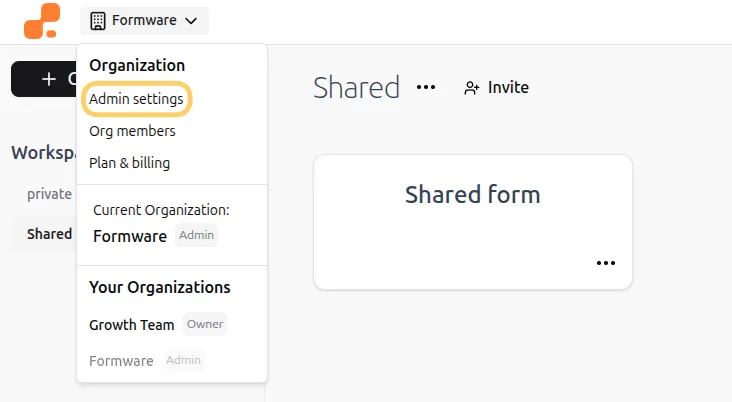
- Open the organization menu in the upper-left corner.
- Click Admin Settings.
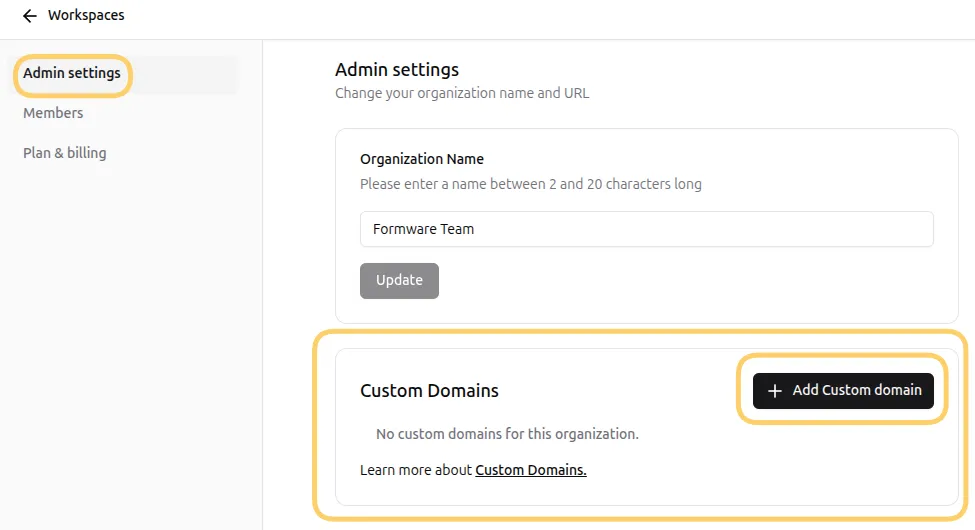
- Locate the Custom Domains section.
- Click Add Custom Domain.
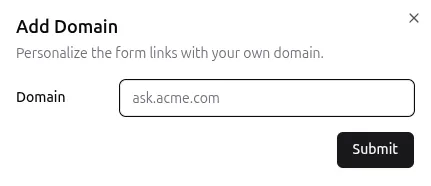
You can add either:
- A domain (for example,
acme.com) - A subdomain (for example,
ask.acme.com)
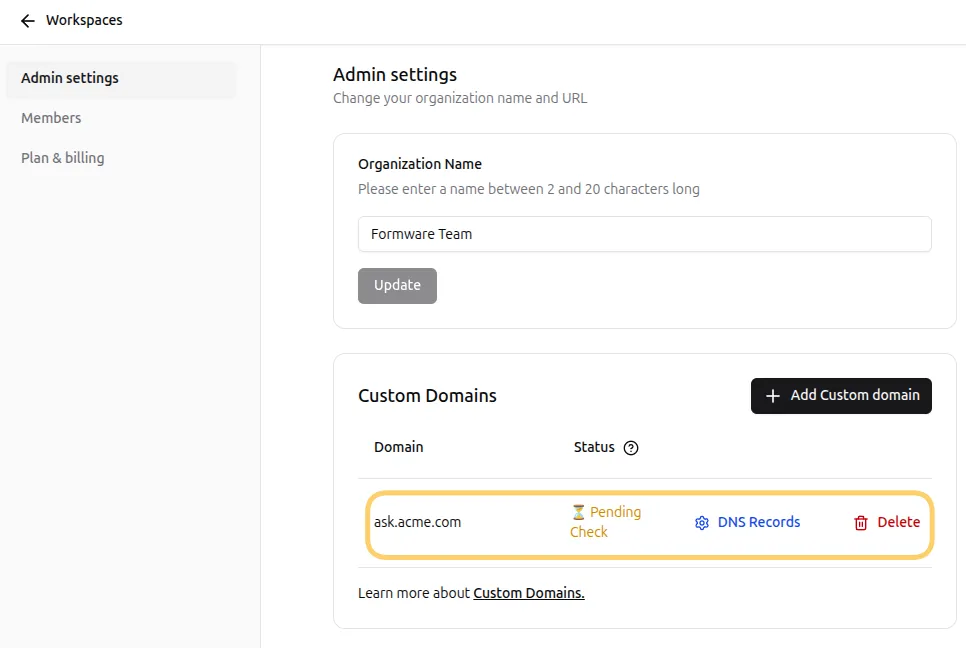
After adding your domain, it will appear with a Pending Check status while Formware verifies your DNS configuration.
Configure DNS records
Section titled “Configure DNS records”After adding your domain, click DNS Records to view the DNS records required for verification.
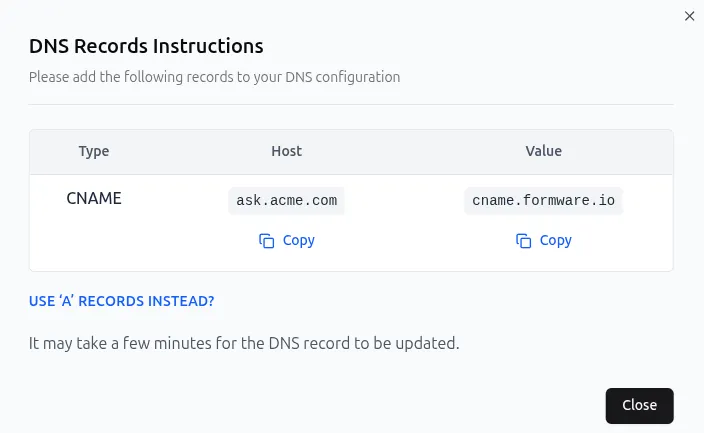
Depending on your setup:
- For a subdomain, add the provided CNAME record.
- For an apex domain, add the provided A records.
After saving your DNS records, Formware automatically checks your configuration and verifies the domain.
DNS propagation can take anywhere from a few minutes to several hours depending on your DNS provider and TTL settings.
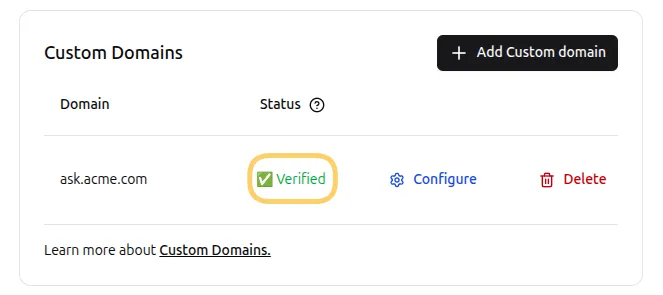
Once verification succeeds, the status changes to Verified.
Verification statuses
Section titled “Verification statuses”| Status | Description |
|---|---|
| Pending Check | Verification is currently in progress. |
| Not Found | Required DNS records could not be found. |
| Verified | DNS records were found and the domain is active. |
Create custom form URLs
Section titled “Create custom form URLs”Once your domain is active, click Configure next to the domain to manage URL mappings.
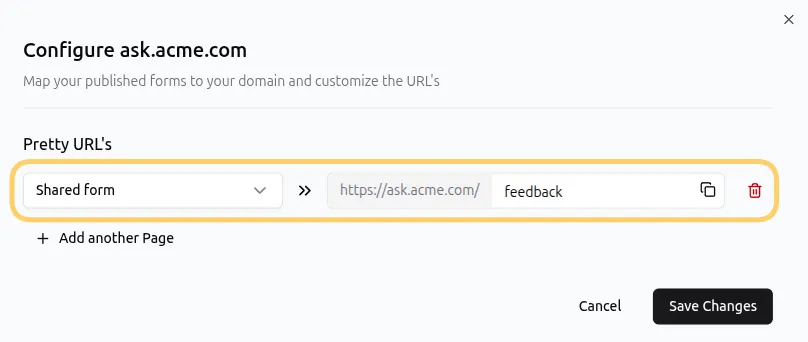
Custom form URLs allow you to create short, memorable URLs for published forms.
Select a published form from the dropdown list and specify a URL path.
For example:
| Form | URL |
|---|---|
| Contact Form | ask.acme.com/contact |
| Customer Survey | ask.acme.com/customer-survey |
Click Save to apply your changes.
After saving, the form will be available on your custom domain.
Example:
https://ask.acme.com/contact
To remove a URL mapping, click the trash icon next to the entry.
Hosting, HTTPS, and SSL
Section titled “Hosting, HTTPS, and SSL”When you connect a custom domain to Formware, your forms are automatically hosted on Formware’s infrastructure.
Formware handles:
- Form hosting
- Domain routing
- HTTPS
- SSL certificate provisioning
- SSL certificate renewals
No additional hosting or server configuration is required.
SSL certificates
Section titled “SSL certificates”SSL certificates are automatically issued after your domain has been successfully verified.
This means:
- HTTPS is enabled automatically
- SSL certificates are renewed automatically
- No additional configuration is required
Formware manages certificate provisioning and renewal behind the scenes to keep your forms secure.
Troubleshooting
Section titled “Troubleshooting”Domain shows “Not Found”
Section titled “Domain shows “Not Found””Make sure the DNS records provided by Formware have been added correctly and that DNS propagation has completed.
Verification is taking a long time
Section titled “Verification is taking a long time”DNS changes can take several hours to propagate depending on your DNS provider and TTL settings.
SSL certificate is not available yet
Section titled “SSL certificate is not available yet”SSL certificates are issued automatically after DNS verification succeeds. In some cases, certificate provisioning may take a few additional minutes after verification is complete.
Need additional help?
Section titled “Need additional help?”If you’re unable to verify your domain after DNS propagation has completed, or if you’re experiencing issues with custom domain configuration, our team can help.