
Add Users to Workspaces
Shared Workspaces in Formware, allow you to collaborate with specific teammates without giving them access to every form or workspace in your organization.
You can invite users to individual workspaces, assign different access levels, and control who can view or edit forms and submissions.
If a user is already part of your organization, they can be added instantly. External users will receive an invitation to join Formware before accessing the workspace.
Invite users to a Workspace
Section titled “Invite users to a Workspace”Users added to a workspace can collaborate on its forms and submissions without needing access to other workspaces in your organization.
- Open the workspace you want to share and click Invite next to the workspace name.
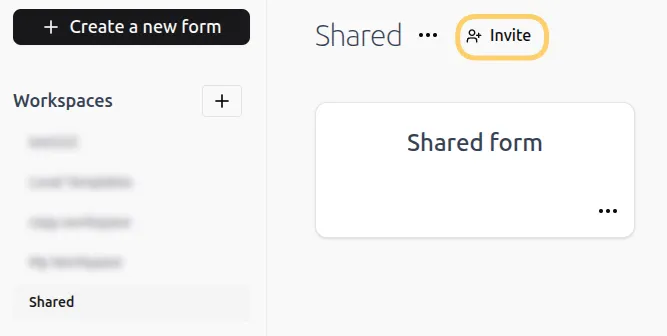
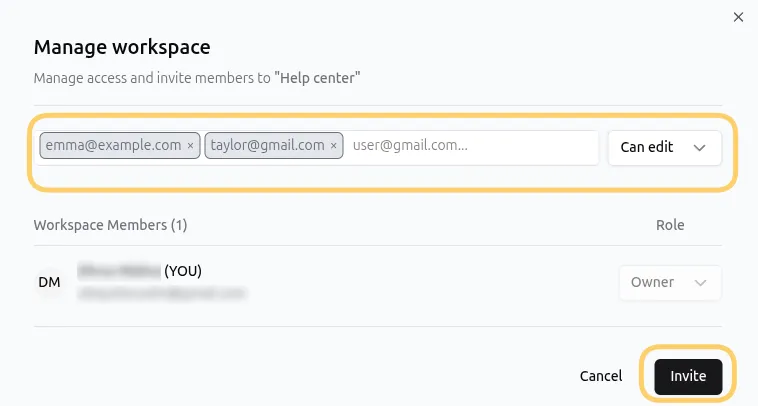
- A workspace management dialog will appear where you can invite collaborators.
Enter one or more email addresses, select a workspace role, and click Invite.
Workspace Owners can add and remove organization members from workspaces. However, Workspace Owners, who are also Organization Owners and Admins can invite users from outside the organization. Workspace Owners who are Organization Editors can only invite existing members of the organization.
- Once invited, users will receive an email invitation. They should click Join Workspace and log in to their Formware account to access the workspace.
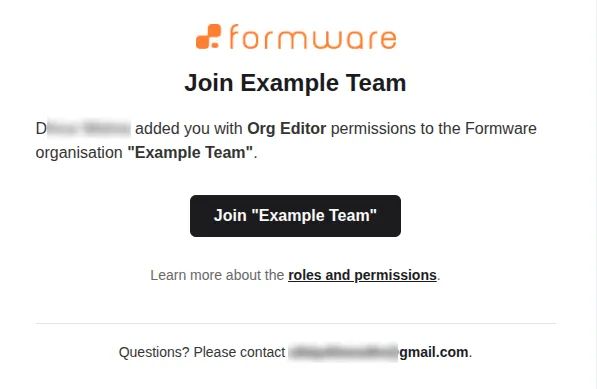
If the invited email address already belongs to a member of the organization, they’ll be added to the workspace immediately.
If the user is outside the organization, they’ll need to accept the invitation and create a Formware account before accessing the workspace.
Until the invitation is accepted, the user won’t appear in the Workspace members list. Once accepted, the workspace will appear in their sidebar.
- Workspace members can have one of the following roles:
- Owner
- Can edit
- Can view
Workspace Owners can:
- Manage workspace settings
- Invite or remove collaborators
- Assign ownership to other members
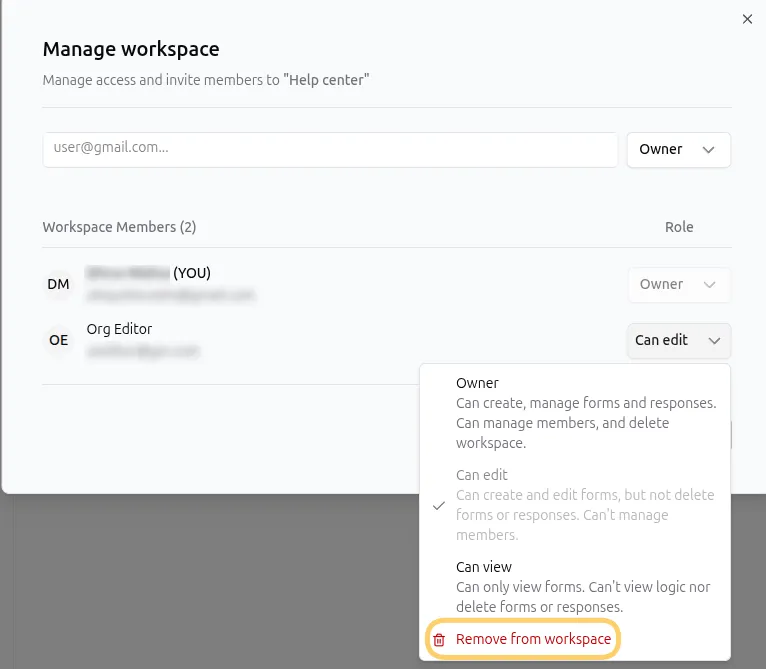
Workspaces can have multiple Owners. To change a user’s role, open the workspace management dialog and use the dropdown menu next to their name.
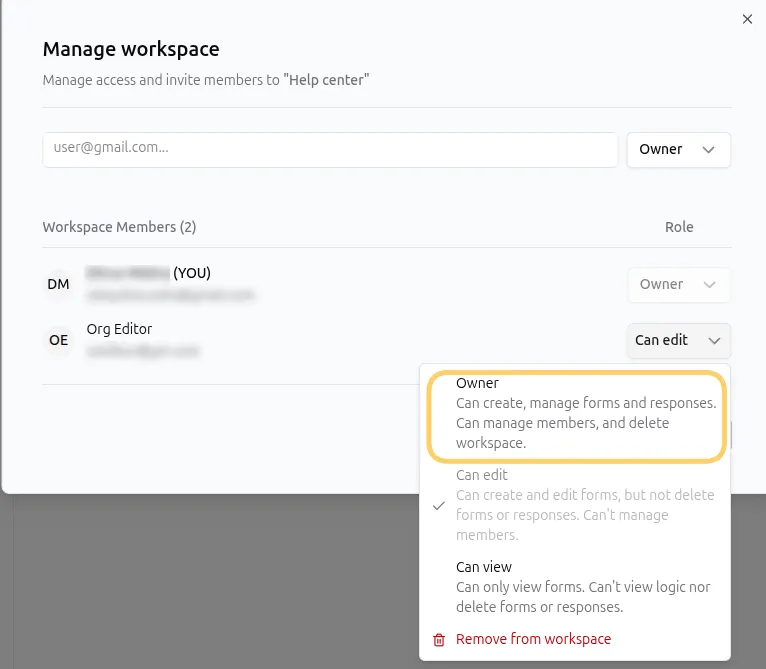
- To remove someone from a workspace, open the workspace management dialog, click the dropdown menu next to their name, and select Remove from workspace.
When to use Workspaces
Section titled “When to use Workspaces”Workspaces are useful when you need to:
- Collaborate with teammates on forms
- Share access to submissions and analytics
- Separate projects into different workspaces
- Control who can edit or view forms
- Manage permissions across teams or departments
Using workspace-level permissions helps keep projects organized while giving collaborators the right level of access.