What Is a WhatsApp Contact Form?
A WhatsApp contact form is a short online form that customers use to reach you — questions, support requests, quotes, feedback — and the moment they hit submit, the message arrives directly in your WhatsApp as a chat from the customer’s own number.
Instead of inquiries landing in an inbox nobody watches, they appear where you already talk to customers every day. The gap between “customer asked” and “you replied” shrinks from hours to seconds.
Businesses typically use WhatsApp contact forms for:
- Customer support — product questions, order issues, help requests
- Service inquiries — pricing, availability, and customizations
- Consultation requests — “can we talk?” messages that start a real conversation
- Feedback & suggestions — reviews, ideas, and complaints you actually see — or set up a dedicated WhatsApp feedback form for post-purchase reviews
- General outreach — any “contact us” use case on a website or social bio
How a WhatsApp Contact Form Works
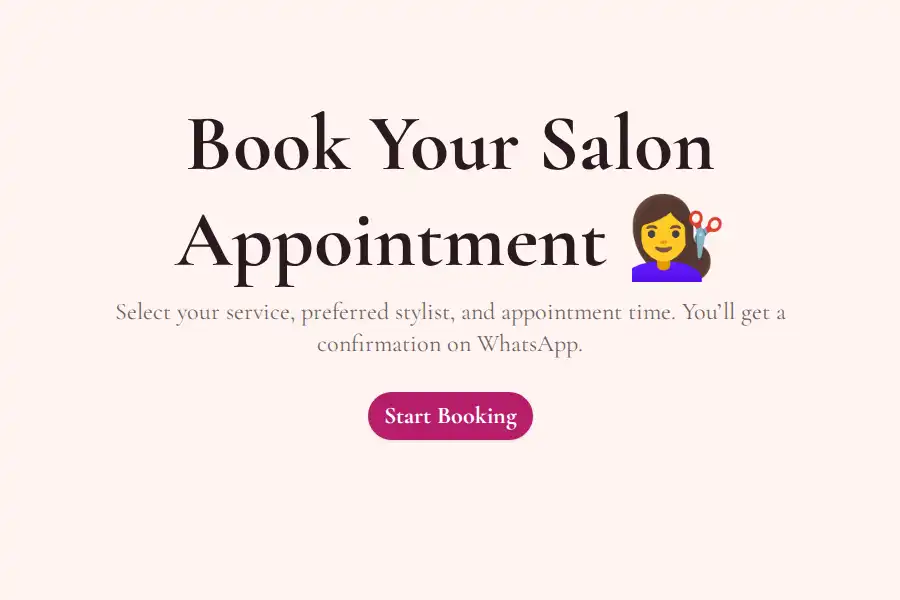
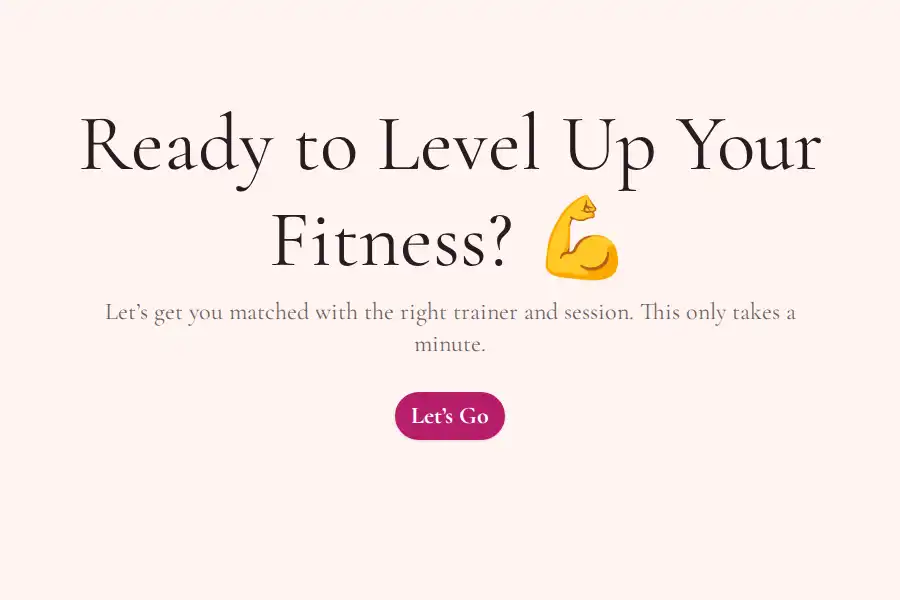
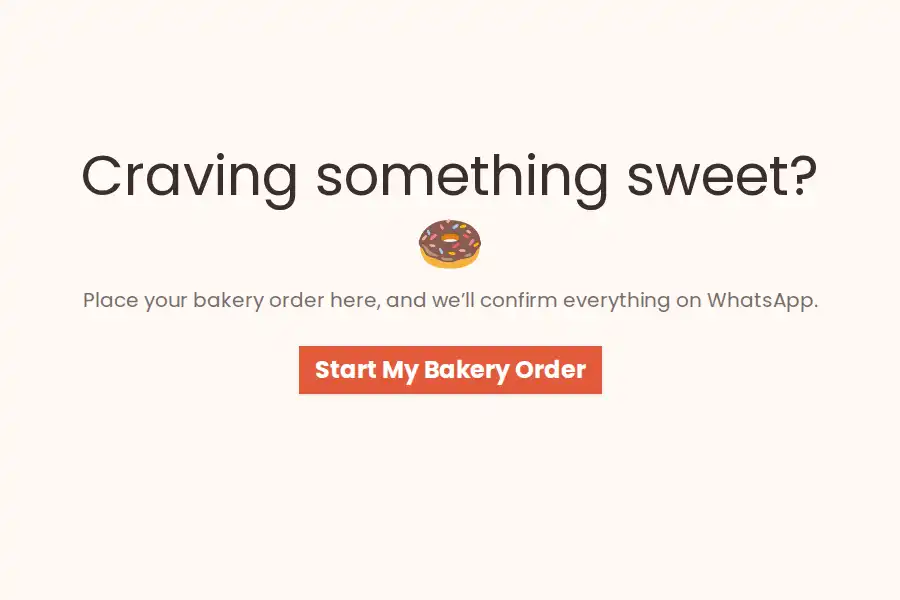
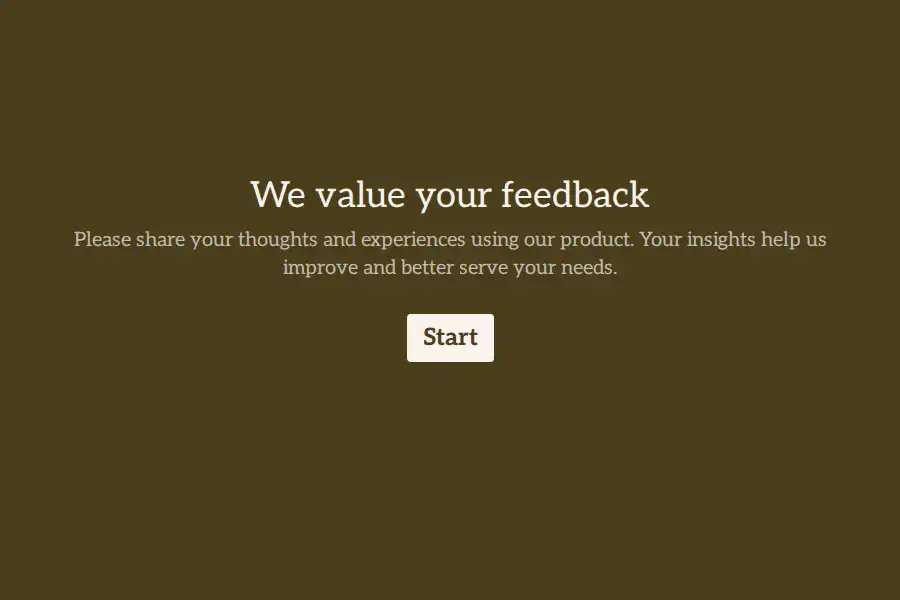
Build your form Use the WhatsApp form builder to add the fields you need — or adapt one of the ready-made templates below.
Add your WhatsApp number Paste your number into the form settings. That’s the whole setup — no WhatsApp Business API, no verification. Full walkthrough in the forwarding guide.
Share the form Embed it on your contact page, link it in your bio, print it as a QR code, or use the WhatsApp widget so visitors can reach you without leaving the page.
Reply in the thread Each inquiry arrives from the customer’s own number — answer it like any other chat. Follow-up questions, files, and the full history all live in one conversation.
What to Include in a Contact Form
Short forms get submitted; long forms get abandoned. A strong WhatsApp contact form usually has:
- Customer name — so replies feel personal
- WhatsApp number — the reply-able contact (ask for email only as a backup)
- Inquiry type — a dropdown (Support / Sales / Feedback / Other) so you know what you’re opening before you open it
- Message — a text area for the actual question or request
- Attachment (optional) — screenshots and files give you the full context up front
- Order or booking reference (optional) — if inquiries often relate to existing transactions
The inquiry-type dropdown is the quiet workhorse: it lets you read “Support” at a glance and answer accordingly — no opening every message to find out what it is.
Example WhatsApp Contact Form (Copy This)
- Name — short text
- WhatsApp number — phone number
- Inquiry type — dropdown (Support / Sales / Feedback / Other)
- Your message — long text
- Attach a screenshot or file (optional) — file upload
Want a faster start? Begin from a template below or browse the full WhatsApp form templates gallery and swap in the fields above.
Contact Form or Click-to-Chat Button?
If you’ve looked at WhatsApp website tools, you’ve probably seen click-to-chat buttons — a WhatsApp icon that opens a chat when tapped (you can generate one free with our WhatsApp link generator). It’s worth knowing the difference:
| Click-to-chat button | WhatsApp contact form | |
|---|---|---|
| How it works | Opens a blank chat; the visitor types everything manually | A structured form: name, inquiry type, message |
| What you receive | A “Hi” with no context | A complete, organized inquiry |
| Qualification | None — you ask everything by hand | Details captured up front |
| Works when the visitor is on a desktop | Only if they have WhatsApp Desktop | Always — it’s a normal web form |
The best setup uses both: the WhatsApp widget as the visible entry point, opening a structured form — so visitors get the familiar chat experience, and you get organized inquiries instead of an empty “hello.”
Do You Need WhatsApp Business for Contact Forms?
No. Formware works with your regular WhatsApp number — and equally well if you use the free WhatsApp Business app. What you never need is the WhatsApp Business API: no Meta verification, no approved message templates, no per-conversation fees.
Customer messages arrive as normal chats from their own numbers — so replying feels personal, because it is.
Best Practices
- Keep it to 4–5 fields — every extra field costs submissions
- Use an inquiry-type dropdown instead of asking people to explain what department they need
- Put the form where people already look: contact page, bio link, QR codes on receipts and packaging
- Reply fast, even briefly — “Got it, checking now” beats silence; a form submission is a live moment of intent
- Forward inquiries to a CRM or email via webhooks if your team keeps records elsewhere
Related WhatsApp Forms
- Selling products? See WhatsApp order forms.
- Taking appointments? See WhatsApp booking forms, or the dedicated guides for salons and spas, studios & trainers.
- Collecting leads from ads and landing pages? See the WhatsApp lead capture form.
- Collecting post-purchase feedback instead of inquiries? See WhatsApp feedback forms.
- Adding this form to your website? See WhatsApp forms for WordPress — no plugin needed.
- Evaluating tools? See the best WhatsApp form builders — including Formware vs. WhatsForm and Formware vs. Collect.chat.
Frequently Asked Questions
What is a WhatsApp contact form?
An online form for questions, inquiries, and support requests that delivers each submission directly to your WhatsApp — as a chat message from the customer’s own number, ready for you to reply.
How do customers submit the form?
They tap your link or open the form on your website, fill out a few fields, and hit submit — no WhatsApp account needed on their side, nothing to install. The message then appears in your WhatsApp instantly.
Do I need the WhatsApp Business API?
No. Submissions are delivered to your regular WhatsApp number without any API account, verification, or message templates.
Can customers attach files or screenshots?
Yes. Add a file upload field and customers can attach images, PDFs, and documents with their inquiry (up to 10 MB on the free plan) — so you see the issue, not just a description of it.
Is this better than a WhatsApp chat button?
For anything beyond casual chatting, yes. A chat button gives you a blank “hi”; a contact form gives you a structured inquiry with the details you’d otherwise ask for one message at a time. Many sites use both together — the widget opens the form.
Can I use it as a feedback form?
Absolutely. Rename the inquiry-type options to Feedback / Suggestion / Complaint, keep the form to 3–4 fields, and every piece of feedback arrives directly in your WhatsApp while it’s still fresh. For structured post-experience collection — ratings, routing by score, QR codes at the point of experience — see the dedicated WhatsApp feedback form guide.
Will I still have a record of inquiries outside WhatsApp?
Always. Every submission is stored in your Formware dashboard where you can browse and export it, and webhooks can forward inquiries to email, Google Sheets, or a CRM.
Is it free?
Yes — WhatsApp forwarding is included on the free plan, along with unlimited forms, questions, and responses. Pro (from $29.99/month) adds things like removing Formware branding and custom domains.